The Webhook Automations allows you to configure webhooks that should be triggered when an event is received.
Data related to the event is available in the webhookData smart value.
Once you have a rule configured to trigger on an incoming webhook, you can use the Webhook URL and secret to configure an automation.
Automations can be managed in two scopes:
Global
Automations configured by a Jira Site Administrator can be used by all projects within the Jira instance. To manage Jenkins global automations, navigate to Settings > Apps > Jenkins Integration > Automations.
Project
Automations configured by a Jira Project Administrator can be used by the project where the site was configured for. To manage Jenkins project automations, navigate to Project Settings > Apps > Jenkins Integration > Automations.
Add an Automation
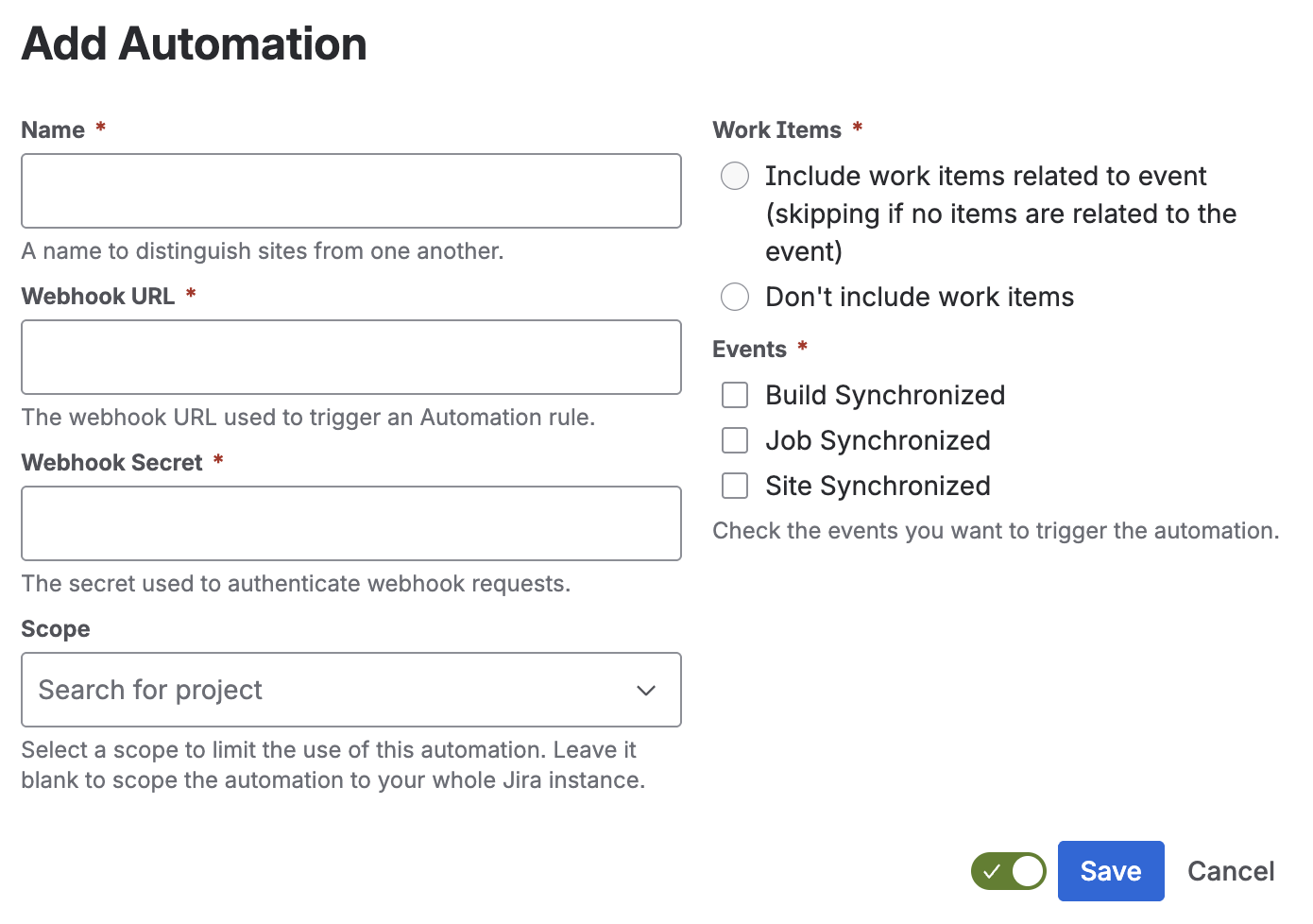
When on the Automations page, click on the Add Automation or Add Your First Automation button. This shows the Add Automation form.
Edit an Automation
To edit the details of an Automation, like name, trigger events, etc, click on the Edit button in the actions column. This will show the Automation edit form allowing you to update the details of the Automation.
Delete an Automation
To delete a Automation, click the Delete button in the actions column.
View Automation Audit Log
To view the audit log of an Automation, click the Audit Log button in the actions column. This will show the Automation audit log.
Smart Values
Smart values allow you to access data within the event that triggered the rule and use them in rule actions.
Object Reference
site
{{webhookData.site.id}} |
Prints the ID of the site. |
{{webhookData.site.name}} |
Prints the name of the site. |
{{webhookData.site.type}} |
Prints the type of the site. |
{{webhookData.site.connectionType}} |
Prints the connection type of the site. |
{{webhookData.site.displayUrl}} |
Prints the URL of the site that can be used by users. |
{{webhookData.site.enabld}} |
Boolean value that indicates the site is enable for processing. |
{{webhookData.site.registrationComplete}} |
Boolean value that indicates the site registration processes is complete. |
{{webhookData.site.jenkinsPluginInstalled}} |
Boolean value that indicates the site has the counterpart plugin installed. |
{{webhookData.site.autoLinkNewJobs}} |
Boolean value that indicates the site will automatically enable new jobs. |
job
{{webhookData.job.id}} |
Prints the ID of the job. |
{{webhookData.job.site}} |
References the site the job is hosted on, see site. Use {{webhookData.job.site.name}} to print the name of the site. |
{{webhookData.job.name}} |
Prints the name of the job. |
{{webhookData.job.fullName}} |
Prints the full name of the job. |
{{webhookData.job.displayName}} |
Prints the display name of the job. |
{{webhookData.job.description}} |
Prints the description of the job. |
{{webhookData.job.displayUrl}} |
Prints the URL of the job that can be used by users. |
{{webhookData.job.lastBuild}} |
Prints the number of the last known build. |
{{webhookData.job.oldestBuild}} |
Prints the number of the first known build. |
{{webhookData.job.linked}} |
Boolean value that indicates that the job is enabled for build-to-issue indexing. |
{{webhookData.job.deleted}} |
Boolean value that indicates that the job is marked as deleted in the app. |
build
{{webhookData.build.id}} |
Prints the ID of the build. |
{{webhookData.build.job}} |
References the job of the build, see job. Use {{webhookData.build.job.name}} to print the name of the job. |
{{webhookData.build.number}} |
Prints the build number. |
{{webhookData.build.displayName}} |
Prints the display name of the build, defaults to {{webhookData.build.job.displayName}} #{{webhookData.build.number}} |
{{webhookData.build.displayUrl}} |
Prints the URL of the build that can be used by users. |
{{webhookData.build.description}} |
Prints the description of the build. |
{{webhookData.build.cause}} |
Prints the cause of the build. |
{{webhookData.build.result}} |
References the result type of the build. Known results include, from best to worst: SUCCESS, UNSTABLE, FAILURE, NOT_BUILT, ABORTED, UNKNOWN. |
{{webhookData.build.builtOn}} |
Prints the name of the node where the build was executed on. |
{{webhookData.build.duration}} |
Prints the duration of the build in milliseconds. |
{{webhookData.build.formattedDuration}} |
Prints the formatted duration of the build, e.g. ‘2m 15s’ |
{{webhookData.build.timestamp}} |
Prints the timestamp the build was scheduled in milliseconds since epoch, January 1, 1970, 00:00:00 GMT. |
{{webhookData.build.buildDate}} |
References the java.util.Date reference to the timestamp when the build was scheduled. |
{{webhookData.build.deleted}} |
Boolean value that indicates that the build is marked as deleted in the app. |
{{webhookData.build.testResults.passed}} |
Prints the number of tests that passed. |
{{webhookData.build.testResults.failed}} |
Prints the number of tests that failed. |
{{webhookData.build.testResults.skipped}} |
Prints the number of tests that where skipped. |
{{webhookData.build.testResults.total}} |
Prints the total number of tests that where part of the build. |
Previous: Automation
Next: Triggers